ဝိုင်ဖိုင်ကွန်ရက် မကြာခဏ ပြတ်တောက်နေမှု သုံးစွဲသူအများစု နစ်နာနေတဲ့အပေါ် ကုမ္ပဏီတွေ လျစ်လျူရှု
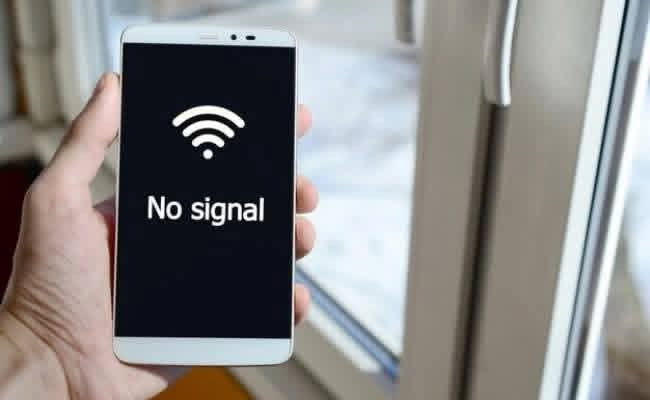
ရန်ကုန်မြို့အပါအဝင် ဒေသအများစုမှာ ဝိုင်ဖိုင် အင်တာနက်လိုင်းတွေ ပြတ်တောက်တာ၊ နှေးကွေးတာတွေ မကြာခဏ ဖြစ်ပေါ်နေတဲ့အတွက် နစ်နာမှုတွေ ရှိနေတယ်လို့ သုံးစွဲသူတွေက ပြောပါတယ်။ ဒ
ါပေမာ့်လည်း သုံးစွဲသူတွေရဲ့ လစဉ်နစ်နာမှုတွေအပေါ် ကုမ္ပဏီတွေဘက် ဈေးလျှော့ပေးတာမျိုး အပါအဝင် တစုံတရာ အစားထိုးဖြည့်ဆည်းပေးတာမျိုး မရှိဘူးလို့ သုံးစွဲသူတွေက ပြောပါတယ်။
အခုလို အင်တာနက်လိုင်း ချို့ယွင်းနေတာတွေဟာ ဝိုင်ဖိုင် အမျိုးအစားတိုင်းလိုလိုမှာ ဖြစ်နေတာလို့ သိရပြီး သုံးစွဲသူတွေဆီက ရရှိတဲ့ အချက်အလက်တွေအရ Hi internet, Atom fiber, Maharnet, Ocean Wave, U9FTTH, MyanmarNet, Unilink, Myanmar Boardband Telecom (MBT), 5BB Broadband Fiber Internet အစရှိတဲ့ ဝိုင်ဖိုင်တွေ အင်တာနက် သုံးစွဲရ အဆင်မပြေ ဖြစ်နေတယ်လို့ သိရပါတယ်။
“Atom ဝိုင်ဖိုင်ကလည်း လိုင်းတော်တော်ဆိုးပြီး မရတာ တလလောက် ရှိတော့မယ်။ အောက်တိုဘာလကတည်းက သက်တမ်းပြည့်လို့ ခြောက်လစာ ဘီလ်ဆောင်ပြီး သက်တမ်းတိုးထားတာ။ နိုဝင်ဘာကနေစပြီး လိုင်းမရတော့ဘူး။ အဲဒီအချိန် ဝိုင်ဖိုင်အားလုံး ပျက်ကြလို့ ထားလိုက်တယ်။ နိုဝင်ဘာ ၁၅ ရက်နေ့ကတည်းက တခြား ဝိုင်ဖိုင်တွေရနေလို့ Call center ကို ဖုန်းဆက်တာ မအားပါချည်းဘဲ။ Viber user group မှာ စာပို့တော့လည်း စာမပြန်။ service အရမ်းညံ့တယ်။ ခုထိလည်း ဘာမှ အကြောင်းမပြန်သေး၊ လိုင်းလည်း မရသေးဘူး” လို့ Atom fiber သုံးစွဲသူတယောက်က ပြောပါတယ်။
အခုလို ဝိုင်ဖိုင် အင်တာနက်လိုင်းတွေ မကြာခဏ နှေးကွေး၊ ပြတ်တောက်နေမှုကို ဝိုင်ဖိုင်ကုမ္ပဏီတွေနဲ့ Call Center တချို့က ယာယီ ပြတ်တောက်တာလို့သာ ပြောဆိုကြပေမယ့် လိုင်းပြတ်တောက်ချိန် နာရီနဲ့ချီ ကြာမြင့်တာတွေလည်း ရှိနေတယ်လို့ သိရပါတယ်။
“5BB Broadband က နိုဝင်ဘာ တလလုံး လိုင်းမကောင်း၊ သုံးမရဘဲနဲ့ Pay bill ကျတော့အပြည့်။ လိုင်းမကောင်း၊ သုံးမရတဲ့ရက်တွေကျ မသိချင်ယောင် ဆောင်နေတယ်။ customer ဆီကတော့ အပြည့်အဝလိုချင်တယ်။ ကိုယ် WiFi ရော Perfect ဖြစ်ရဲ့လား ပြန်စစ်ဆေးစေချင်တယ်။ လိုင်းမကောင်းလို့ call center ကို ဖုန်းဆက်တာ၊ သူတို့လုပ်စာ စားနေတဲ့အတိုင်းပဲ customer ကိုဆက်ဆံတာ။ power ပြည့်နေလို့ လူလွှတ်လိုက်မယ်တဲ့။ ခုချိန်ထိ service အတွက် လူတော့ ရောက်မလာဘူး။ bill တော့ အရှက်မရှိ ရောက်လာတယ်” လို့ သုံးစွဲသူတယောက်က ပြောပါတယ်။
ပြီးခဲ့တဲ့ နိုဝင်ဘာလ ပထမပတ်လောက်ကစပြီး မြန်မာနိုင်ငံ အနှံ့အပြားမှာ ဝိုင်ဖိုင် အင်တာနက်လိုင်း ပြတ်တောက်တာတွေ ဆိုးရွားစွာ ဖြစ်ပေါ်ခဲ့တာဖြစ်ပြီး အဲဒီ အခြေအနေနဲ့ ပတ်သက်လို့ ဆက်သွယ်ရေး ကုမ္ပဏီအများစုက ၎င်းတို့ရဲ့ Facebook Page တွေမှာ တောင်းပန် အသိပေးစာတွေ အသီးသီး ထုတ်ပြန်ခဲ့ကြပါတယ်။
အဲဒီအချိန်ကာလက ဝိုင်ဖိုင်အများစုဟာ လိုင်းတက်တဲ့ မီးစိမ်း အချက်ပြနေပြီး Connected ဖြစ်နေပေမယ့် အသုံးပြုလို့မရ ဖြစ်ခဲ့သလို မိုဘိုင်းဒေတာမှာလည်း လိုင်းမငြိမ်တာမျိုးတွေ ဖြစ်ပေါ်ခဲ့ပါတယ်။
နိုဝင်ဘာ ဒုတိယပတ်လောက်မှာတော့ ဝိုင်ဖိုင်အမျိုးအစား တချို့ ကွန်ရက်ချိတ်ဆက်မှု ပြန်လည် ကောင်းမွန်ခဲ့ပေမယ့် အများစုကတော့ ဒီကနေ့အချိန်အထိ အင်တာနက်လိုင်း ပြတ်တောက်တာ၊ နှေးကွေးတာတွေ ရှိနေဆဲ ဖြစ်တယ်လို့ သိရပါတယ်။
လက်ရှိမှာ အင်တာနက် ကွန်ရက်ချိတ်ဆက်မှု အခြေအနေ ဆိုးရွားနေဆဲ ဖြစ်နေတာနဲ့ ပတ်သက်လို့ Myanmar Net ကလွဲပြီး ဆက်သွယ်ရေးကုမ္ပဏီ အများစုက တောင်းပန် အသိပေးစာတွေ ထပ်မံ ထုတ်ပြန်ထားတာ မတွေ့ရသေးပါဘူး။
Myanmar Net ရဲ့ ဒီဇင်ဘာ ၃ ရက်က ထုတ်ပြန်တဲ့ မေတ္တာရပ်ခံ အသိပေးစာမှာတော့ မော်လမြိုင်၊ ရန်ကုန်၊ နေပြည်တော်၊ ပဲခူး၊ တောင်ငူ၊ ပျဉ်းမနား၊ မကွေး စတဲ့ ဒေသတွေမှာ ကွန်ရက် ပြတ်တောက်မှုတွေ ဖြစ်ပေါ်လျက်ရှိတယ်လို့ ဖော်ပြထားပါတယ်။
အင်တာနက် ကွန်ရက်လိုင်း အမြန်ဆုံး ပြန်လည် ကောင်းမွန်လာစေဖို့အတွက် နည်းပညာကျွမ်းကျင် ဝန်ထမ်းတွေက ဦးစားပေး ပြင်ဆင်လျက်ရှိတယ်လို့လည်း အသိပေးထားပါတယ်။
ဒါနဲ့ပတ်သက်လို့ Myanmar Net သုံးစွဲသူ တယောက်က “Myanmar Net က ဝန်ဆောင်မှု အရမ်းညံ့လွန်းတယ်။ အင်တာနက်လိုင်း မရတာ ၂၄ နာရီကျော်နေပြီ။ ဘာမှ တာဝန်ယူမှု၊ တာဝန်ခံမှု မရှိကြဘူး။ လိုင်းက ရရင်လည်း မိတချက်၊ မမိတချက်။ မနေ့ကစပြီး လုံးဝ လိုင်းမမိတော့ဘူး အခုထိ။ မီးက စိမ်းနေပြီး လုံးဝ သုံးမရတော့ဘူး။ လိုင်းသာ မကောင်းတာ။ ဈေးကတော့ နှစ်သောင်းနှစ်ထောင်ကနေ တက်လာလိုက်တာ၊ သုံးသောင်းခွဲကျော်။ ဘီလ်လာကောက်မှ ဈေးတက်တာ သိရတယ်” လို့ ပြောပါတယ်။
အခုလို အင်တာနက် ကွန်ရက်လိုင်း မကြာခဏ ပြတ်တောက်နေမှုတွေအတွက် ဝိုင်ဖိုင်ကုမ္ပဏီတွေ အနေနဲ့ ဒေတာအပို ဝန်ဆောင်မှု အစားထိုး ပြန်လည်ပေးအပ်တာ၊ အသုံးပြုခ ငွေကြေး လျှော့ချပေးတာတွေ မရှိဘူးလို့ သိရပါတယ်။
ဒါကြောင့် သုံးစွဲသူတွေအနေနဲ့ ငွေကြေး အလဟဿ ဆုံးရှုံးနေရတာအပြင် ဝိုင်ဖိုင် အင်တာနက်လိုင်း အချိန်ပြည့် မရရှိတဲ့အတွက် Online class တက်ရောက်နေသူတွေ၊ Online sale လုပ်ဆောင်နေသူတွေ၊ အွန်လိုင်းအသုံးပြုပြီး လုပ်ငန်း လည်ပတ်နေရသူတွေ အခက်အခဲတွေ ဖြစ်ပေါ်နေပြီး များစွာ နစ်နာနေရတယ်လို့ သိရပါတယ်။
“ဒီကြားထဲ အင်တာနက်လိုင်း မရလို့ သူတို့ဆီ ဖုန်းဆက်ရရင် ဖုန်းဘီလ်က ထပ်ကုန်သေးတယ်။ call center က ဝန်ထမ်းတွေနဲ့ စကားပြောရဖို့အရေး ချန်ပီယံများ မအားလပ်သေးပါသဖြင့် ခေတ္တ စောင့်ဆိုင်းပေးပါ ဆိုတာကြီးကို အကြာကြီး စိတ်ရှည်ရှည်နဲ့ နားထောင်နေသေးရတယ်။ အဲဒီမှာ ဖုန်းဘီလ်တွေက ထပ်ကုန်။ ပိုက်ဆံတောင်းဖို့ကျ အချိန်မှန်၊ ဘီလ်မဆောင်မိလို့ လိုင်းဖြတ်သွားရင်လည်း အချိန်မှန်ပဲ။ ဝိုင်ဖိုင် ဘီလ်ဆောင်ရတာက တလကို လေးသောင်း။ ဈေးကလည်းကြီးသေး။ လိုင်းကလည်း စုတ်ခြာသေး။ သူတို့ဘက်က နစ်နာတာ ဘာမှမရှိဘူး။ ဖုန်းဆက်မရလို့ Viber ကနေ စာပို့ရင်လည်း တိကျသေချာတဲ့အဖြေ ဘာတခုမှ မရဘူး။ တောင်းပန်ပါတယ်၊ အထက်ကို တင်ပြထားပေးပါတယ်၊ စောင့်ဆိုင်းပေးပါ ဆိုတာချည်းပဲ။ ဝန်ဆောင်မှု အရမ်းညံ့တယ်” လို့ U9FTTH သုံးစွဲသူတယောက်က ပြောပါတယ်။