🚨 Windows မတက်တော့ရင် ဒီ ၇ ဆင့်နဲ့ ဖြေရှင်းလိုက်ပါ!
ကွန်ပျူတာ Power On လုပ်လိုက်တိုင်း Windows Logo ပြပြီး တက်မလာတာ၊ Black Screen ပဲကြည့်နေရတာ၊ Automatic Repair ဆိုပြီးပေါ်နေတာ ဆိုတဲ့ပြဿနာတွေ ကြုံဖူးကြမှာပါ။ စိတ်မပူပါနဲ့၊ ဒီပြဿနာတွေကို ကိုယ်တိုင်ဖြေရှင်းလို့ရပါတယ်။
🔧 Windows မတက်ရင် အရင်ဆုံးစစ်ဆေးရမယ့်အရာများ
1️⃣ Power Supply စစ်ဆေးပါ
· Power Cable ချိတ်ဆက်မှု မှန်ရဲ့လားစစ်ပါ
· Laptop ဆိုရင် Charger ပြproblemမရှိရဲ့လားစစ်ပါ
· UPS/Stabilizer သုံးနေရင် Bypass လုပ်ကြည့်ပါ
2️⃣ Hardware Connection စစ်ဆေးပါ
· RAM, Hard Disk Cable တွေ လွတ်မလွတ်စစ်ပါ
· External Devices တွေအားလုံးဖြုတ်ပါ (USB, Printer, HDMI)
3️⃣ Display Problem ဟုတ်မဟုတ်စစ်ပါ
· Monitor Power LED လင်းနေရင် Display Problem ဖြစ်နိုင်တယ်
· Laptop ဆိုရင် External Monitor ချိတ်ကြည့်ပါ
💻 Windows မတက်ရင် လုပ်ဆောင်နိုင်သော ဖြေရှင်းနည်းများ
1️⃣ Safe Mode ဖြင့်စတင်ပါ
· Computer Power On လုပ်ပါ
· Windows Logo ပေါ်တာနဲ့ Power Button ကိုဖိပြီး Force Shutdown လုပ်ပါ
· ဒီလိုလုပ် ၂-၃ ခါလုပ်ပါ (အကြိမ်ရေ များရင် Automatic Repair Screen ပေါ်လာပါမယ်)
· "Advanced options" > "Troubleshoot" > "Advanced options" > "Startup Settings" > "Restart"
· Restart ပြီးရင် Safe Mode (F4) ကိုရွေးပါ
2️⃣ System Restore လုပ်ပါ
· Safe Mode ရောက်ရင် System Restore လုပ်ပါ
· "Start" > "System Restore" ရိုက်ရှာပါ
· ပြဿနာမဖြစ်ခင် Date တစ်ခုကိုရွေးပြီး Restore လုပ်ပါ
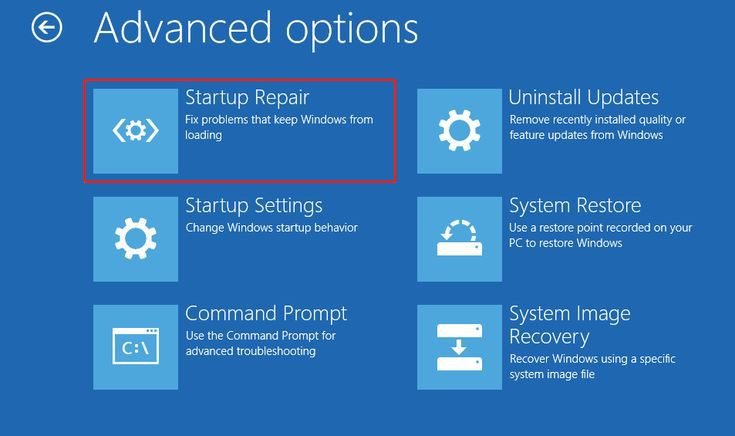
3️⃣ Startup Repair လုပ်ပါ
· Automatic Repair Screen ကနေ "Advanced options" > "Startup Repair" ကိုရွေးပါ
· Windows က ပြဿနာကိုအလိုအလျောက်ရှာပြီး ပြင်ပေးပါလိမ့်မယ်
4️⃣ Command Prompt ကနေပြင်ဆင်ပါ
· Advanced Options ထဲက "Command Prompt" ကိုရွေးပါ
· ဒီ Command တွေရိုက်ထည့်ပါ:
```cmd
sfc /scannow
chkdsk C: /f /r
bootrec /fixmbr
bootrec /fixboot
bootrec /rebuildbcd
```
5️⃣ Last Known Good Configuration
· Advanced Startup Options ထဲက "Last Known Good Configuration" ကိုရွေးပါ
· နောက်ဆုံး အလုပ်လုပ်ခဲ့တဲ့ Settings နဲ့ Boot ကြည့်ပါ
⚠️ ဒါတွေကျမှ System Reset/Reinstall စဉ်းစားပါ
1️⃣ System Reset (Keep My Files)
· "Troubleshoot" > "Reset this PC" > "Keep my files"
· Apps & Settings တွေပျက်သွားပေမယ့် Personal Files တွေကျန်ပါမယ်
2️⃣ Clean Install
· Windows Installation Media (USB/DVD) ပြုလုပ်ပါ
· BIOS/UEFI ထဲမှာ Boot Order ပြောင်းပါ
· Clean Windows Install ပြန်လုပ်ပါ
📋 မတက်တော့တဲ့ Windows ကိုပြန်တက်အောင်လုပ်နည်း
အဆင့်ဆင့်လုပ်ဆောင်ပါ:
1. Safe Mode ဝင်ပါ - အရင်ဆုံးလုပ်ပါ
2. System Restore - ပြဿနာမဖြစ်ခင် Date ကိုရွေးပါ
3. Startup Repair - Windows ကအလိုလိုပြင်ခိုင်းပါ
4. Command Prompt Repair - Advanced Users အတွက်
5. Last Known Good Configuration - နောက်ဆုံးအလုပ်လုပ်တဲ့ Settings
6. System Reset - Files တွေမပျက်ချင်ရင်
7. Clean Install - အားလုံးအသစ်ပြန်တင်မယ်ဆိုရင်
💡 ကြိုတင်ကာကွယ်နည်းများ
· ရက်စွဲတိုင်း System Restore Point လုပ်ထားပါ
· အရေးကြီး Data တွေ Backup မှန်မှန်လုပ်ပါ
· Windows Update မှန်မှန်လုပ်ပါ
· Antivirus Software သုံးပါ
· Unexpected Shutdown မလုပ်ပါနဲ့
"Windows မတက်တော့တဲ့ပြဿနာက ကြောက်စရာကောင်းပေမယ့်ဒီအဆင့်တွေအတိုင်း စနစ်တကျဖြေရှင်းရင် ၉၀% ပြေလည်သွားနိုင်ပါတယ်။ Safe Mode ဝင်တတ်ဖို့နဲ့ System Restore Point လုပ်တတ်ဖို့ကတော့ အရေးကြီးဆုံးအချက်တွေပါပဲ"